WidgetBear

Every new tab opens on today.

WidgetBear turns Chrome's new tab into a desk for your day: tabs and links filed into collections, your bookmarks, and today's calendar, to-dos and headlines in one glance.

Chrome Web Store Coming soon No account. Your data stays in your browser.
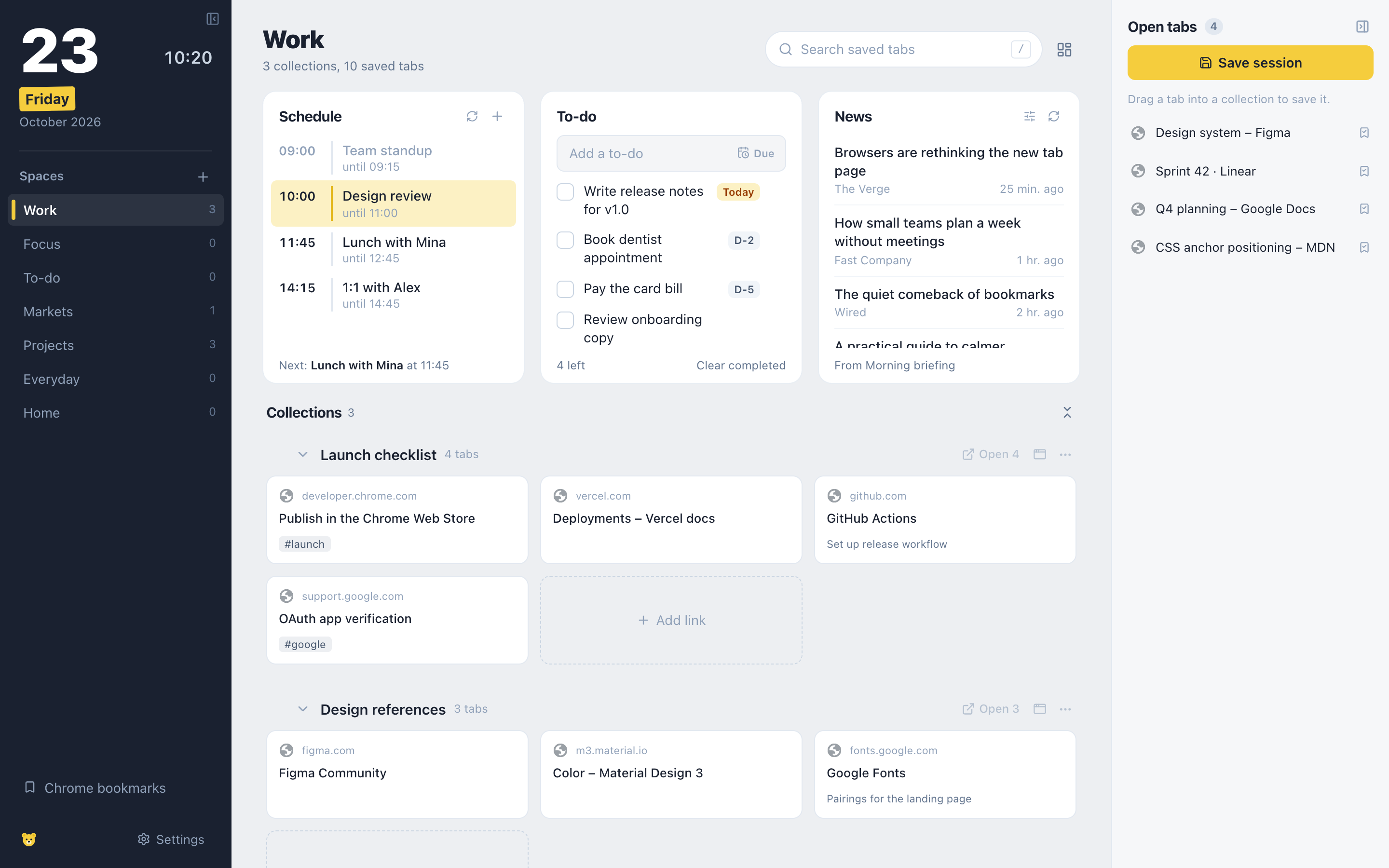
WidgetBear new tab: a dark sidebar with today's date and spaces, a row with Schedule, To-do and News, collections of saved links below, and the open tabs list on the right.
Today at the top, your collections underneath, open tabs on the right, ready to drag in.

Today, at a glance

The first thing you see is what the day holds.

  • Google Calendar events on a timeline, with what's happening now highlighted
  • Add an event and it goes straight to Google Calendar
  • To-dos with due dates; finished items clear overnight
  • Headlines from Google News, a keyword you follow, or any RSS feed

Tabs and links, filed

Close twenty tabs without losing any of them.

  • Drag open tabs into collections, or save the whole window at once
  • Paste a list of links to add them all
  • Tags, sorting, duplicate cleanup, bulk move and delete
  • Spaces for work, side projects and home

Your bookmarks, tidied

Chrome's bookmarks, right next to everything else.

  • Browse, edit, move and delete bookmarks and folders
  • Turn a bookmark folder into a collection, or the reverse
  • Coming from Toby or OneTab? Import your export file

Your dashboard, your layout

Pick the panels. Drag them where you want.

Each space has its own dashboard on a 12-column grid. Add a panel, drag it by its handle, pull its corner to resize. Keep a calm Work space with your schedule and links, and a Focus space with a timer and your routine.

Nothing changes until you press Save, so trying out a layout is free.

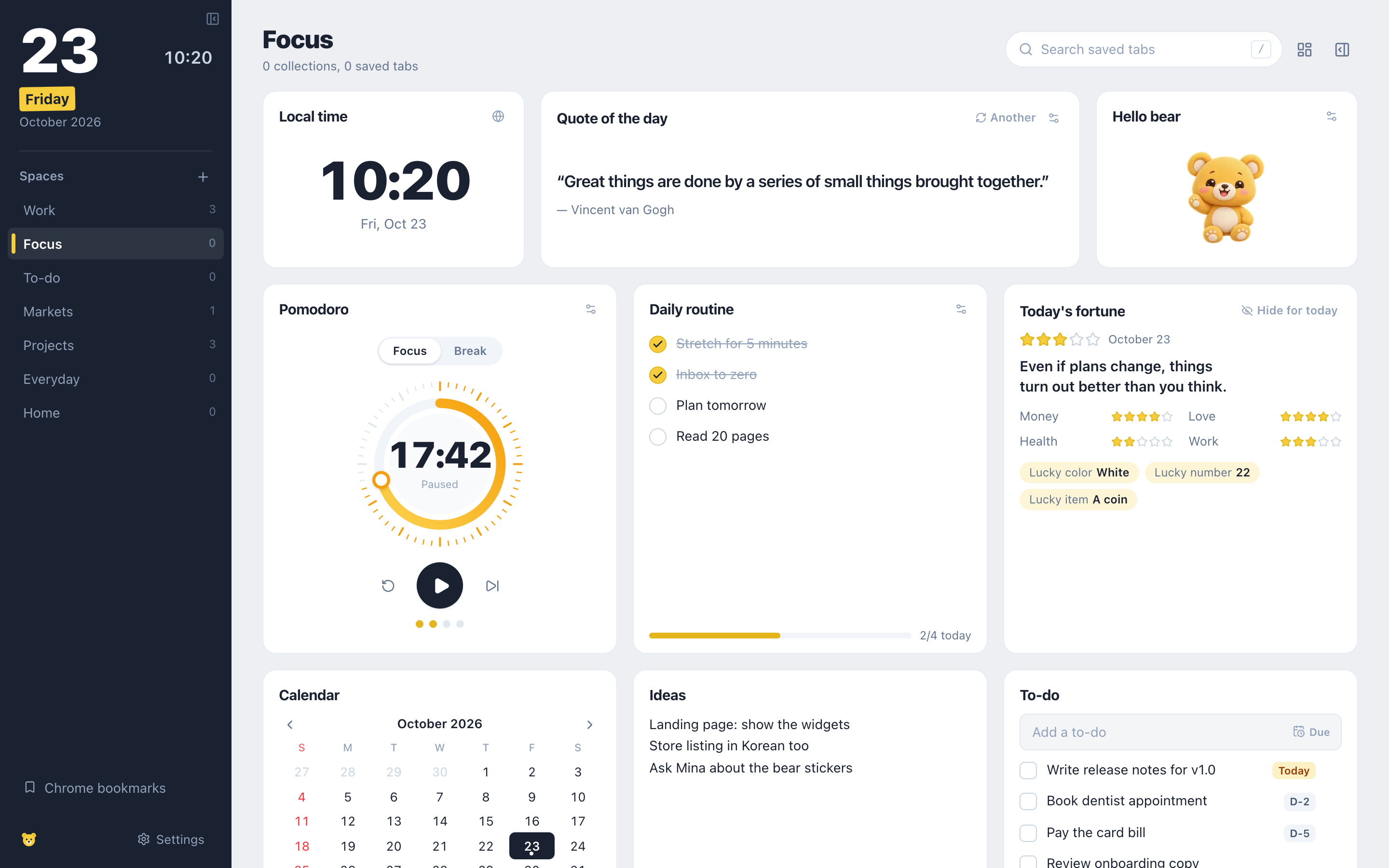
A Focus space with widgets: local time, quote of the day, a waving bear sticker, a Pomodoro timer paused at 17:42, a daily routine half done, today's fortune, a month calendar, a note and a to-do list.

Fourteen panels to choose from

  • ScheduleToday's Google Calendar events on a time axis, with a "now" line. Add events right there.
  • To-doQuick add, due dates, check off. Done items stay for the day, then drop off.
  • NewsGoogle News, a keyword like "AI", or any RSS/Atom feed. Filter by publisher. Add as many as you like.
  • All collectionsAll the space's collections of saved links, with drag and drop.
  • CollectionPin one collection anywhere on the grid, like a speed dial.
  • CalendarThe month at a glance, with dots on days that have deadlines.
  • ClockYour local time, or any city's. Add one per time zone your team lives in.
  • NoteA plain note that saves as you type.
  • Quote of the dayA new line every morning. Not feeling it? Ask for another.
  • Today's fortuneA lighthearted daily reading: money, love, health, work, and a lucky color.
  • Daily routineA checklist that starts fresh every day, with a progress bar.
  • PomodoroFocus and break timer, drawn as big digits or a ring. Counts today's rounds.
  • Secret memoLocked with a PIN and encrypted in your browser (AES-GCM). Nothing readable is stored.
  • Bear stickerEight animated bears: waving, cheering, hugging a heart, napping, partying… They don't do anything else, and that's fine.

Ways to use it

One space for each part of your day

A space is a new tab with its own purpose: its own dashboard and its own collections. Switch spaces from the sidebar and the whole page changes with you. Here are four ways people set them up.

A space that keeps you on track

For people who live by their list. The to-dos sit front and center with their due dates, the morning routine checks itself off one item at a time, and the calendar shows which days have something due.

  • To-do
  • Daily routine
  • Calendar
  • Pomodoro
  • Note

Tip Rename the routine panel ("Morning routine") and it starts fresh every day, so yesterday's checks never get in the way.
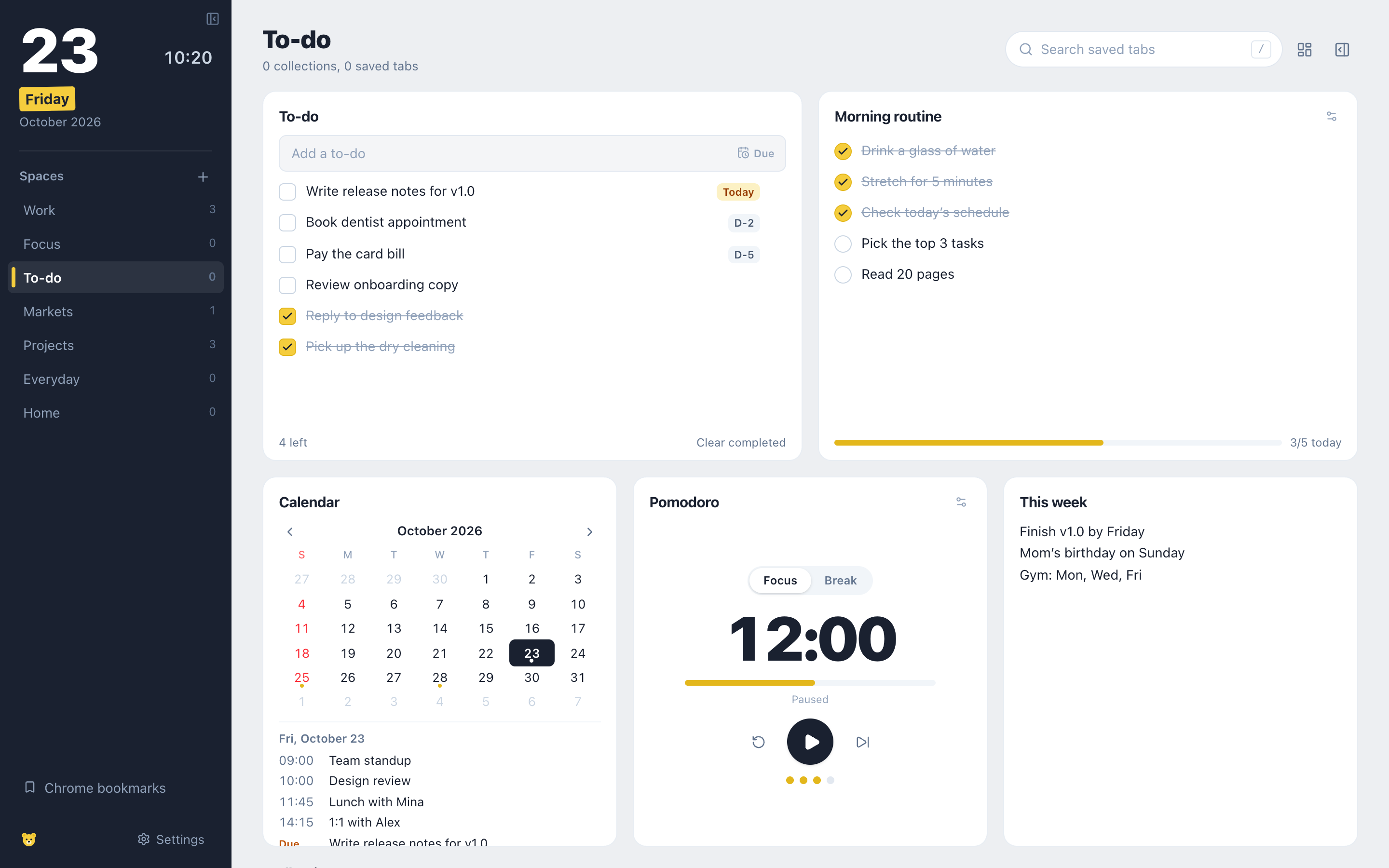
A To-do space: a to-do list with due dates next to a half-finished morning routine, and below a month calendar, a Pomodoro timer and a note for the week.

Check the market before the coffee's done

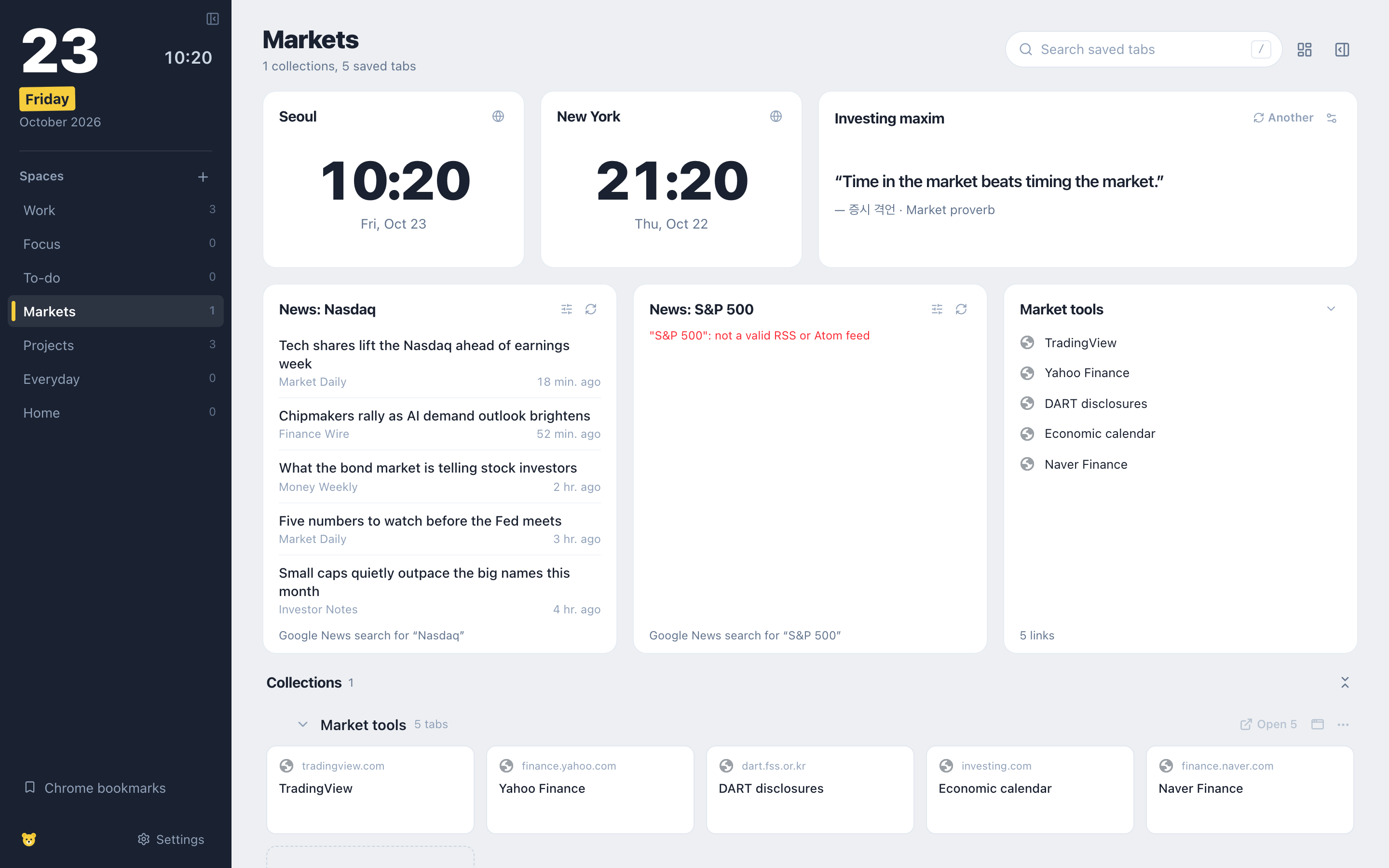
Each news panel can follow its own keyword, so one tracks the Nasdaq and another the S&P 500 (or a sector, or the stocks you hold). Clocks for Seoul and New York show which market is open, and the quote panel, set to investing, serves a maxim a day.

  • News × keyword
  • Clock × 2 time zones
  • Investing maxim
  • Collection

Tip In a news panel's settings, keep only the publishers you trust, or hide the noisy ones. A pinned collection keeps your broker, charts and filings one click away.

A Markets space: clocks for Seoul and New York, an investing maxim, two news panels following Nasdaq and S&P 500 headlines, and a collection of market tools.

Park a task's tabs, pick it up tomorrow

A session is every tab in your window, saved as one collection. Working on a bug with twelve tabs open and need to switch to something else? Save the session, close the tabs, and come back to exactly where you were.

  1. Work as usualOpen whatever the task needs: the issue, logs, docs, a design file.
  2. Save sessionThe button above the open tabs, or Alt+Shift+S on any page. All the window's tabs become one collection, named with the date.
  3. Close and move onTurn on "Close tabs after saving a session" in Settings and the window clears itself.
  4. Pick it back up"Open all" restores every tab, or "Open in new window" gives the task its own window again.

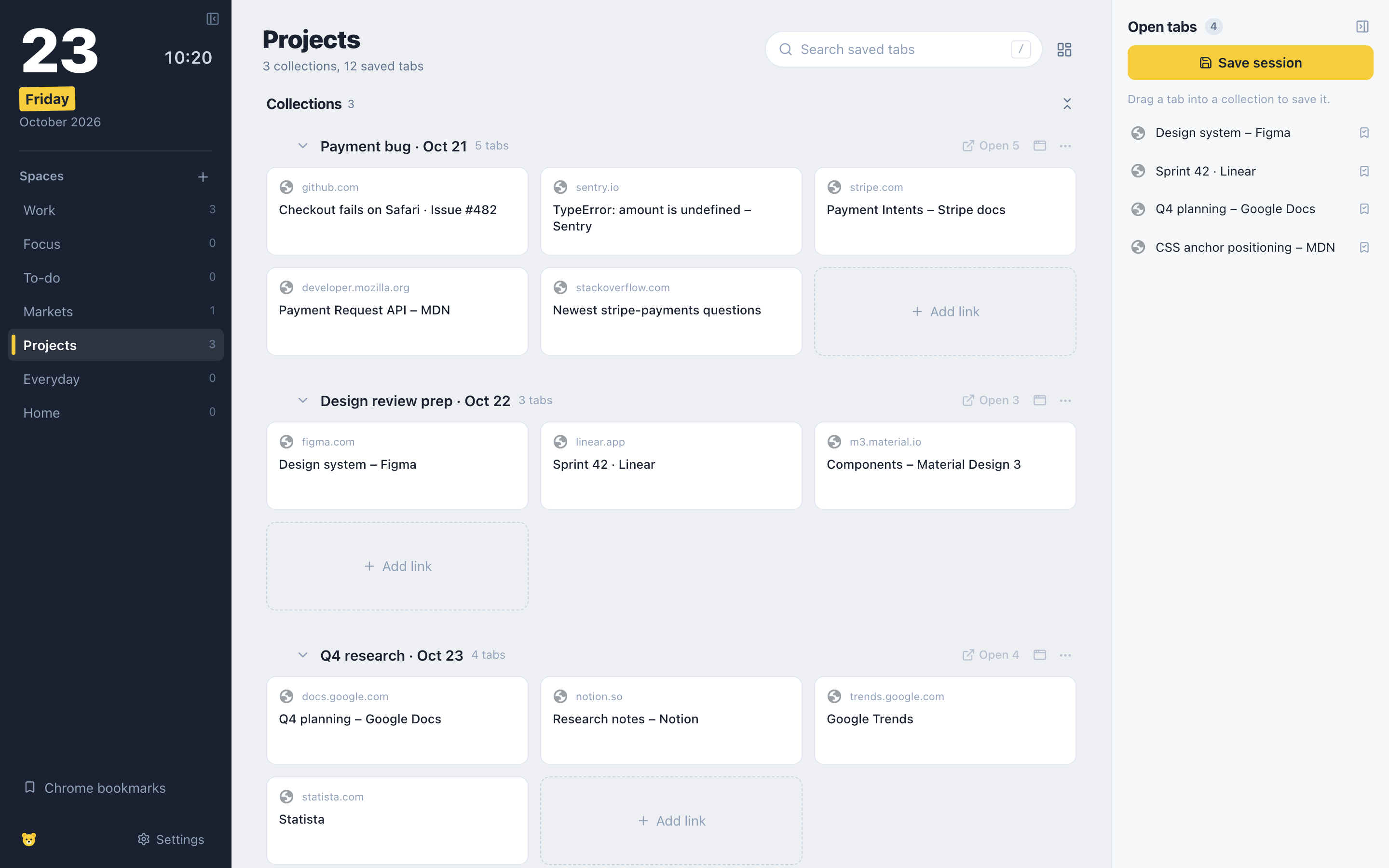
Tip Double-click a session's name to call it what it's for ("Payment bug · Oct 21"). Keep a Projects space just for sessions.

A Projects space with three saved sessions as collections, Payment bug, Design review prep and Q4 research, and the open tabs list with the Save session button.

A new tab you'll want to open

Not every space has to be work. Mix the playful panels into a dashboard that's simply nice to look at: a quote for the morning, today's fortune with a lucky color, a few animated bears, a timer and a small routine for the day.

  • Today's fortune
  • Bear sticker × 3
  • Quote of the day
  • Clock
  • Pomodoro
  • Daily routine
  • Calendar

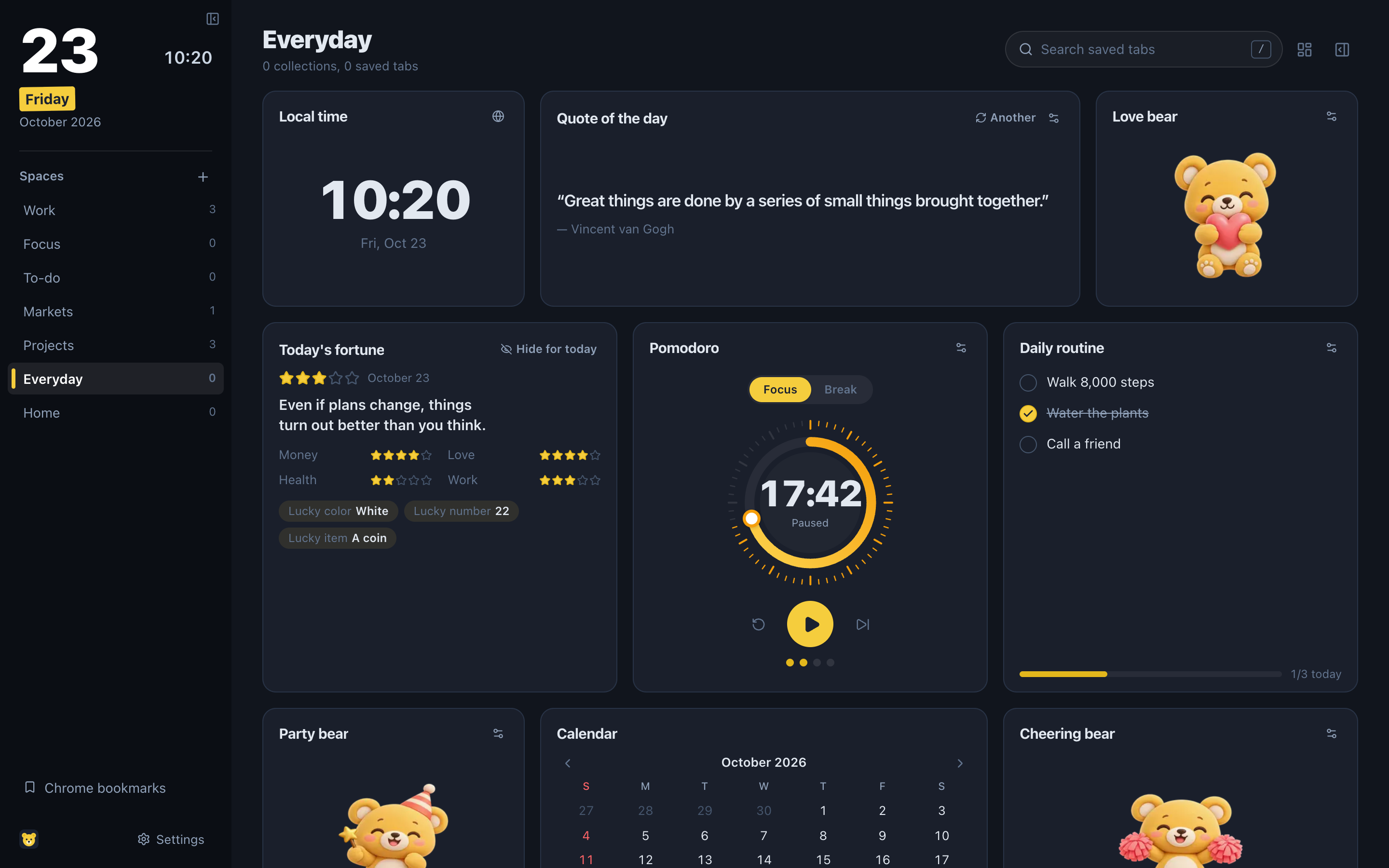
Tip Eight animated bears to choose from: hello, happy, cheering, love, thanks, sleepy, curious and party. Dark theme makes them pop.

An Everyday space in dark theme: a clock, quote of the day and an animated bear holding a heart, then today's fortune, a Pomodoro ring timer and a routine, with more bears and a calendar below.

From any page

Save the page you're on in two clicks.

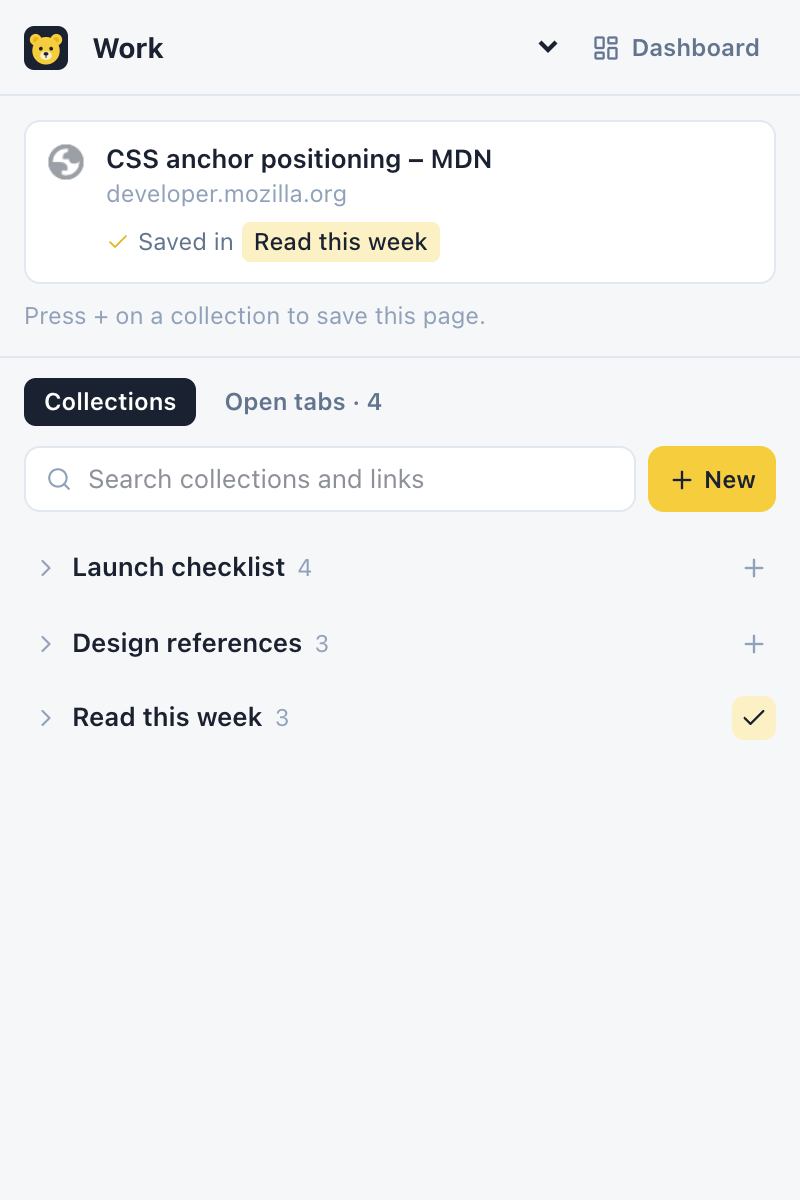
Click the toolbar icon and the side panel opens next to the page. Drop it into a collection, start a new one, or save every open tab at once. If the page is already saved, it tells you where.

  • Right-click a page: "Save page to WidgetBear Inbox"
  • Alt+Shift+S saves the whole window as a collection
  • Search every collection from the panel
The WidgetBear side panel showing the current page, CSS anchor positioning on MDN, already saved in Read this week, above a list of collections.

Up and running in a minute

  1. Add it to ChromeInstall from the Chrome Web Store. Your next new tab is WidgetBear.
  2. Bring your tabsDrag open tabs into a collection, or press Save session. Coming from Toby or OneTab? Import the export file in Settings.
  3. Make today yoursConnect Google Calendar if you like, pick a news feed, and add the panels you want.
SpacesSeparate dashboards and collections for work, side projects and home.
Search everythingPress / to search every saved link, or #tag to filter.
UndoDeleted a link or a collection by mistake? Undo brings it back.
Light and darkFollows your system, or pick one.
English and KoreanThe whole app follows your browser's language, or pick one in Settings.
BackupsExport everything to a file and restore it on another computer.

Your day stays on your computer.

WidgetBear has no accounts, and no servers except for the Send files widget, which uses a small server to connect two browsers (and, when a direct connection is blocked, an encrypted relay) and never stores your files. Everything you save lives in your own browser, and Google Calendar talks to Google directly.

No account
Install it and start. There's nothing to sign up for.
No tracking
No analytics, no ads, no cookies in the extension.
Google Calendar, only if you connect it
Read and add events through Google's own sign-in. Disconnect any time. How Google data is used
Sites only when you ask
Access to a news or calendar site is requested the moment you add one, not before.

Questions

Is it free?

Yes. There's no paid plan, no ads and no account.

Where is my data kept? Does it sync between computers?

In your browser's extension storage on this computer. It doesn't sync on its own; to move to another computer, use Settings → Backup to export a file and import it there. Removing the extension deletes the data, so export a backup first.

Which browsers does it work in?

Google Chrome 116 or newer. Other Chromium browsers such as Edge, Brave and Arc can run it too, but Google Calendar sign-in is built on Chrome's own Google account support.

Why does it ask for access to tabs and bookmarks?

To list the tabs open in your window so you can save them, and to show and edit your Chrome bookmarks in the Bookmarks view. WidgetBear never reads what's on a page. The privacy policy explains every permission.

Do I need Google Calendar?

No. Everything else works without it, and you can remove the Schedule panel. Once it's connected, you can also add Outlook, Apple Calendar or Notion calendars to the schedule with an iCal link.

What if I forget the secret memo's PIN?

The memo is encrypted with a key made from the PIN, and the PIN isn't stored anywhere, so the text can't be recovered. "Forgot PIN?" erases the memo so you can start over.

How do I move over from Toby or OneTab?

Export from Toby (JSON) or OneTab (the text list), then open Settings → Import in WidgetBear and pick the file. Collections and links come across as they were.

Open a new tab on today.

WidgetBear is coming to the Chrome Web Store.

Chrome Web Store Coming soon